Illustrated User Manual
Driver sign-in, inspections, photos, submissions, offline Queue, reminders and session controls.
Version: 1.40.34 Production Candidate 1
Contents
1. Purpose and operating principles2. Sign in and identity verification3. Driver licence expiry reminder4. Driver Entry5. Defect checklist6. Service photos7. Submit and confirmation8. Offline operation and Queue9. Session Buses10. Safety Reminders11. Inactivity and automatic sign-out12. Settings and User Manual13. Troubleshooting14. End-of-session checklist1. Purpose and operating principles
SAMS Driver Manager records yard bus servicing and inspection information. Use the app for each bus handled during the session. Enter accurate bus, mileage and parking information; select only defects actually observed; add supporting photos when helpful; and verify that the submission reached the server or is safely retained in the offline Queue.
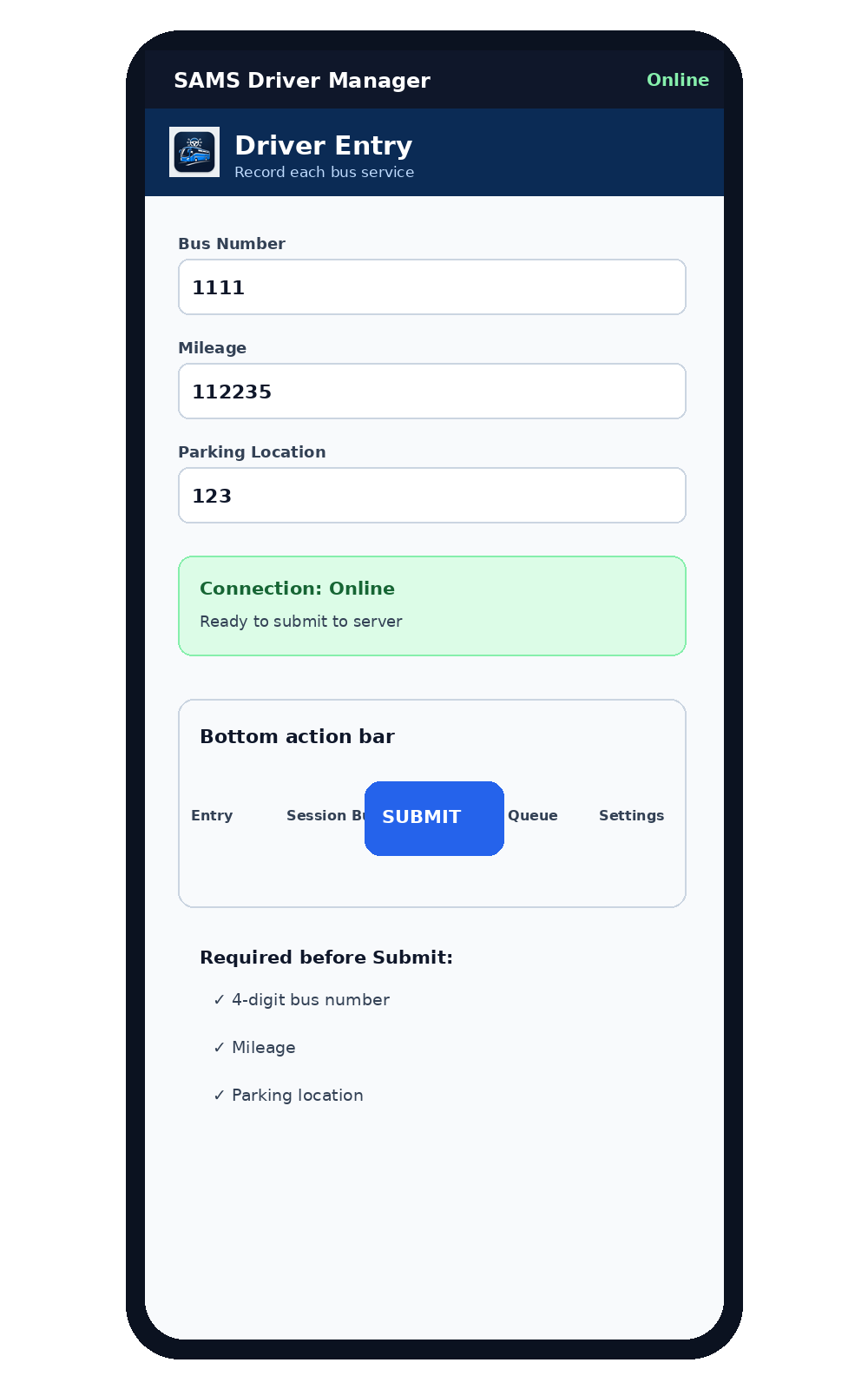
Bus number, mileage and parking location must be complete.
Pending records remain in the device Queue.
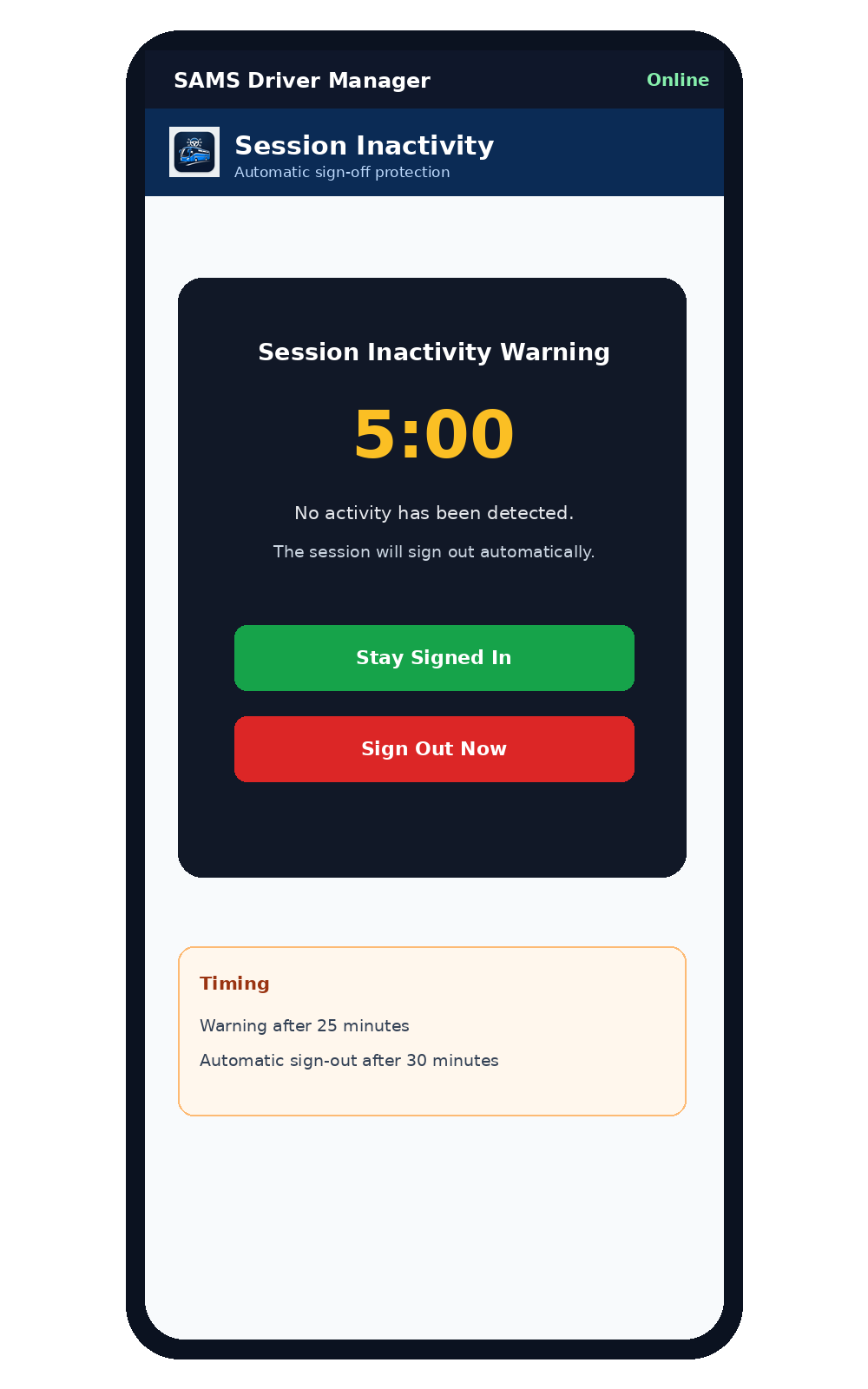
25-minute warning; 30-minute automatic sign-out.
2. Sign in and identity verification
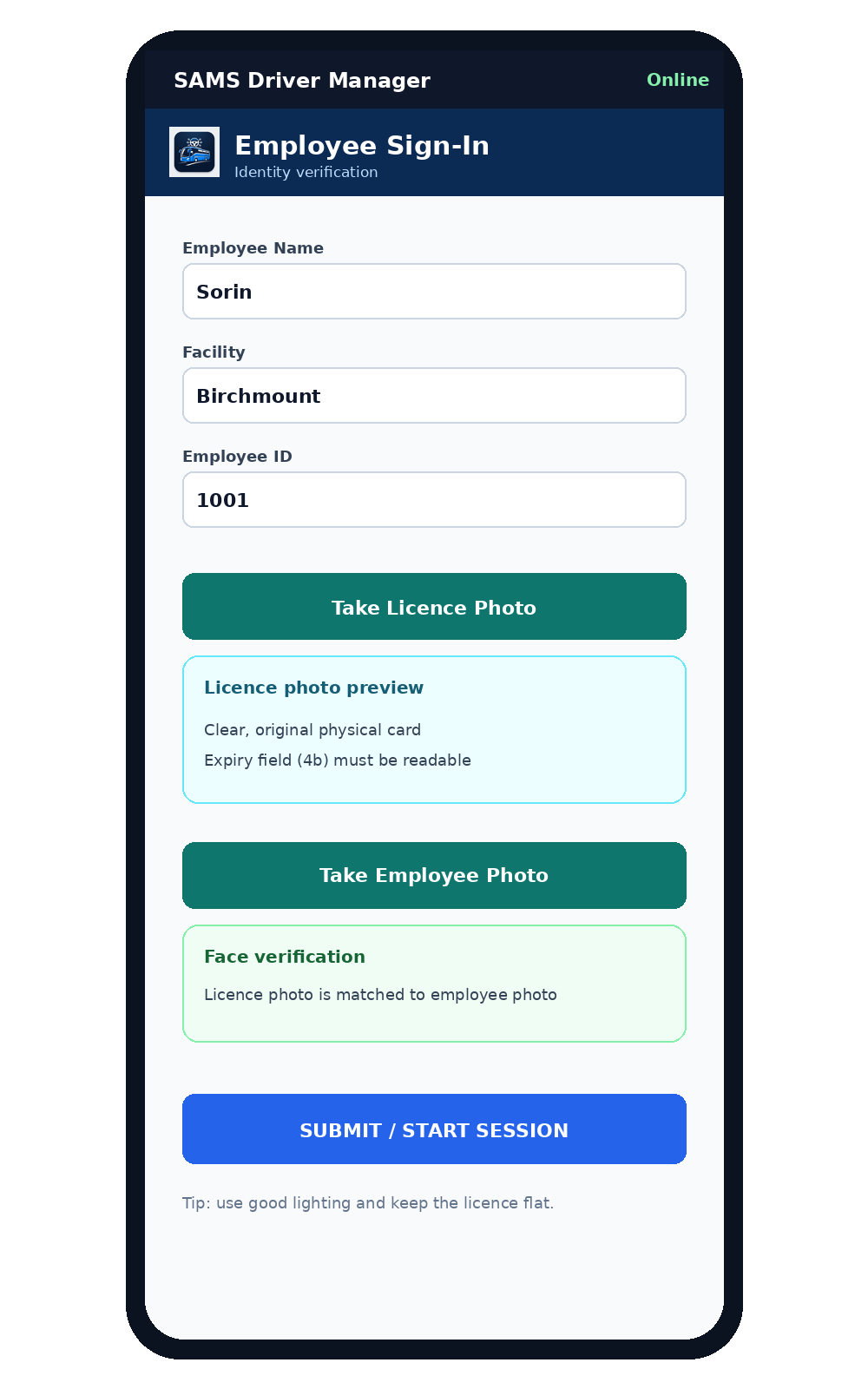
Enter your name, facility and employee ID. Photograph the original physical driver licence and then take the employee photo. The app compares the faces before opening Driver Entry. Use good lighting, avoid glare and keep the complete licence visible.
3. Driver licence expiry reminder
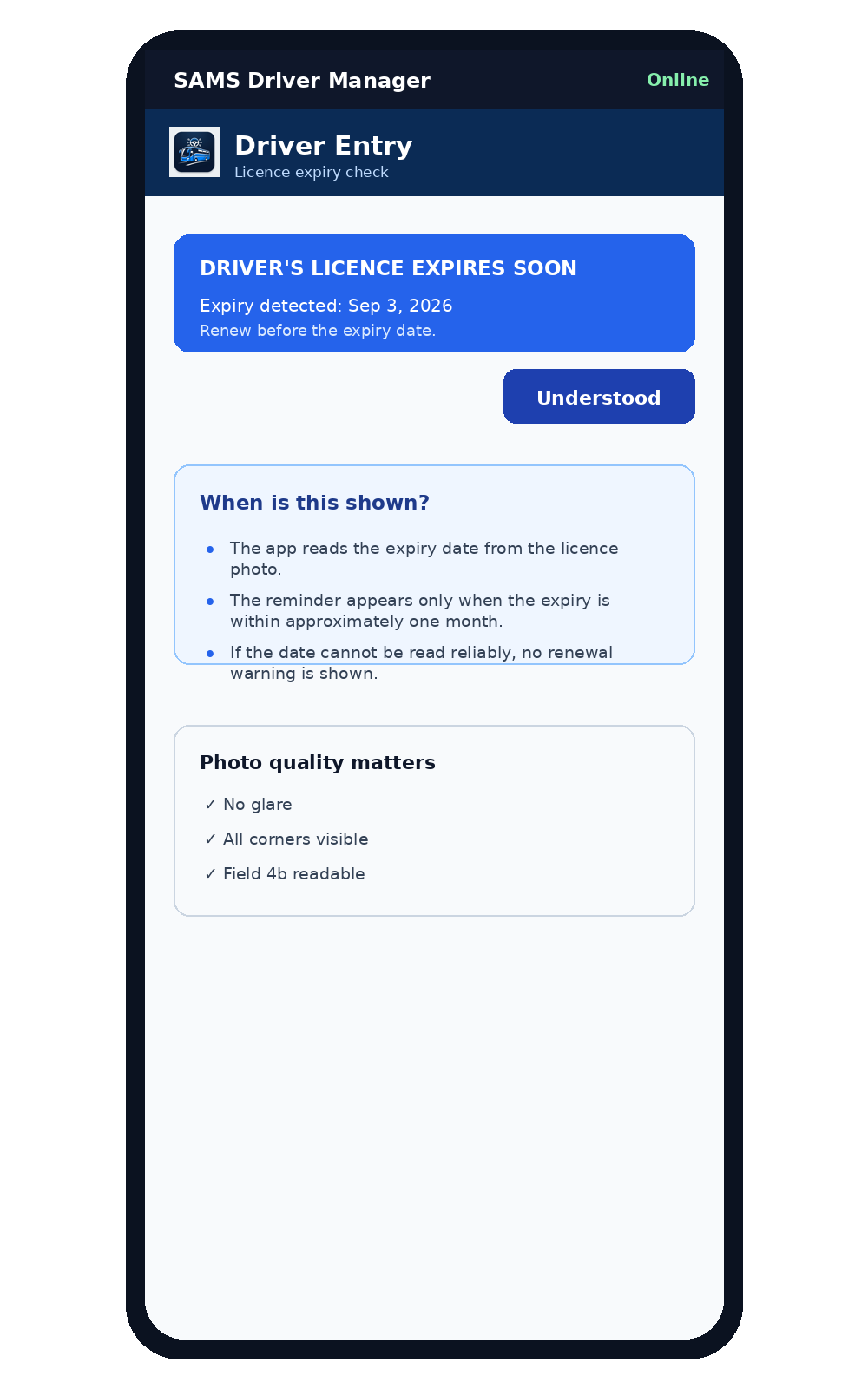
The expiry date is read from the licence photograph. A renewal reminder appears only when the expiry is within approximately one month (31 days) or the licence is already expired. If the expiry date cannot be read reliably, the app does not show a renewal warning.
4. Driver Entry
Enter the four-digit Bus Number, the current Mileage and the Parking Location. The connection indicator shows Online or Offline. Review the information before moving to the defect checklist.
5. Defect checklist
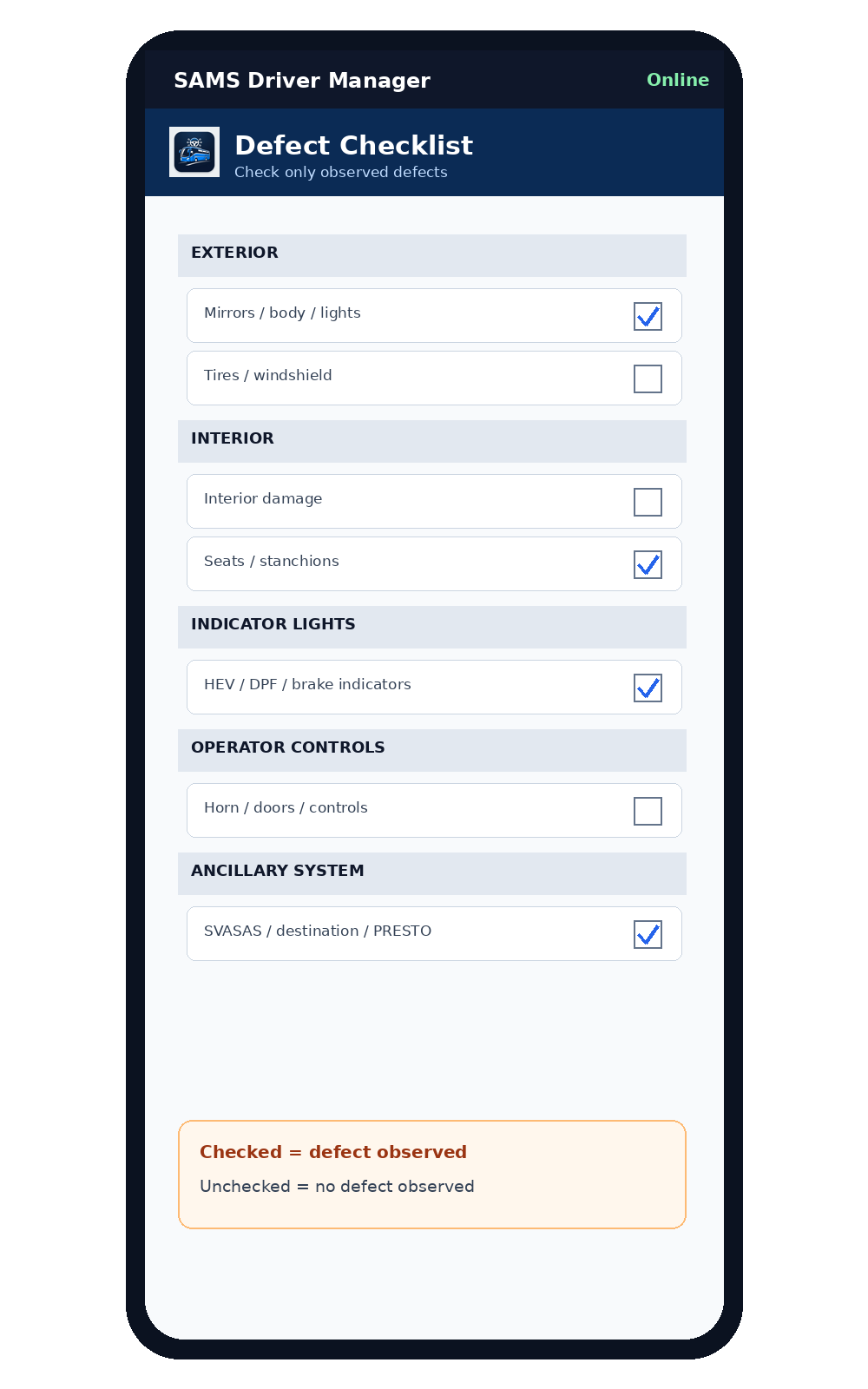
Check an item only when the listed condition is observed. Leave the item unchecked when no defect is observed. The checklist contains Exterior, Interior, Indicator Lights, Operator Controls and Ancillary System categories. Use the Affected Area box to describe location, severity or other relevant details.
6. Service photos
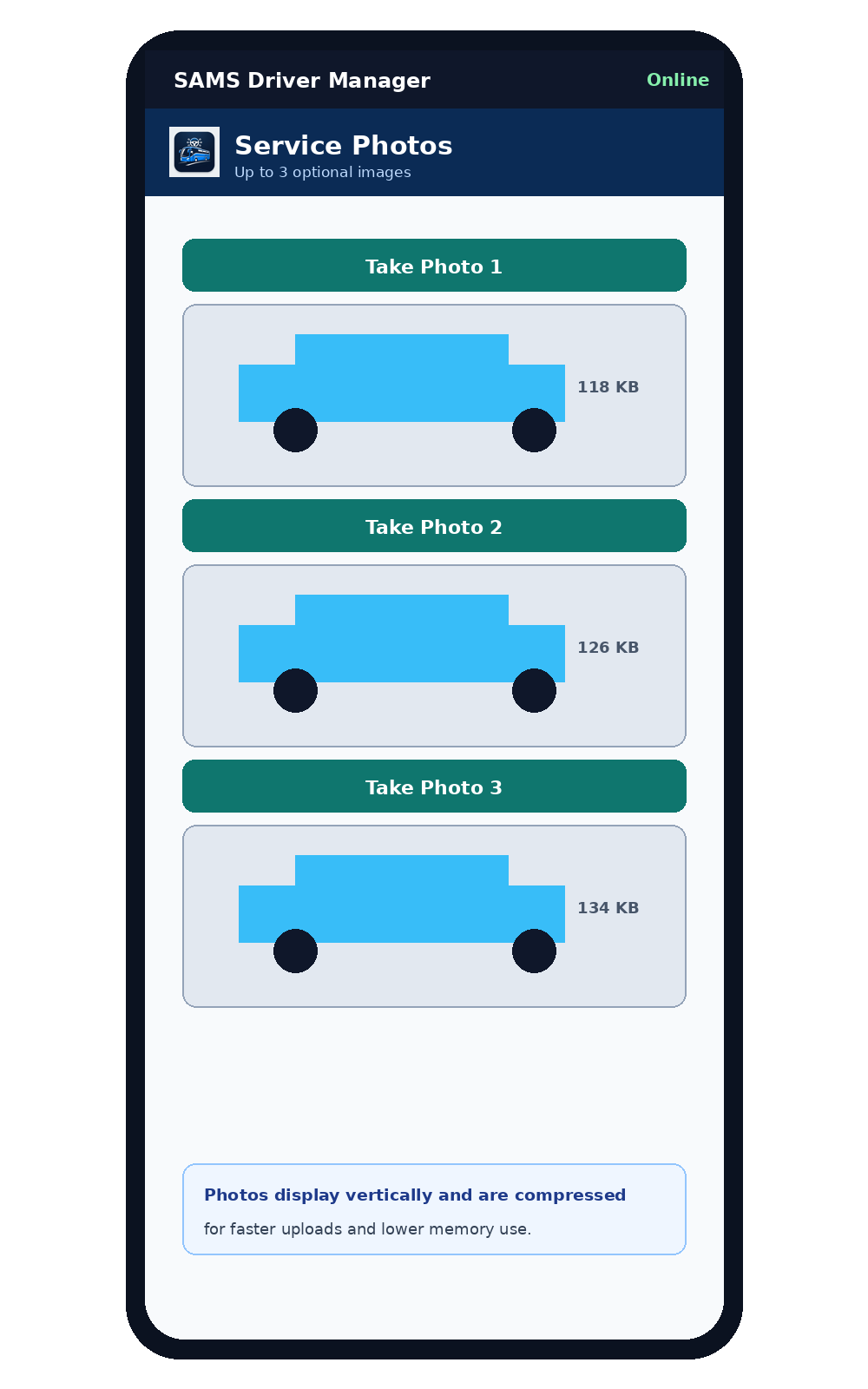
Up to three service photos may be attached. Use the in-app camera buttons. The app compresses photos before upload to reduce memory use and transfer time. The previews appear vertically, one below another. Confirm each preview before submitting.
7. Submit and confirmation
Press SUBMIT once. The app validates required fields, prepares the payload and sends it to the server when connectivity is available. A successful confirmation is shown briefly and the bus is added to Session Buses. Do not repeatedly press Submit if the result is uncertain; check Session Buses or the server record first.
8. Offline operation and Queue
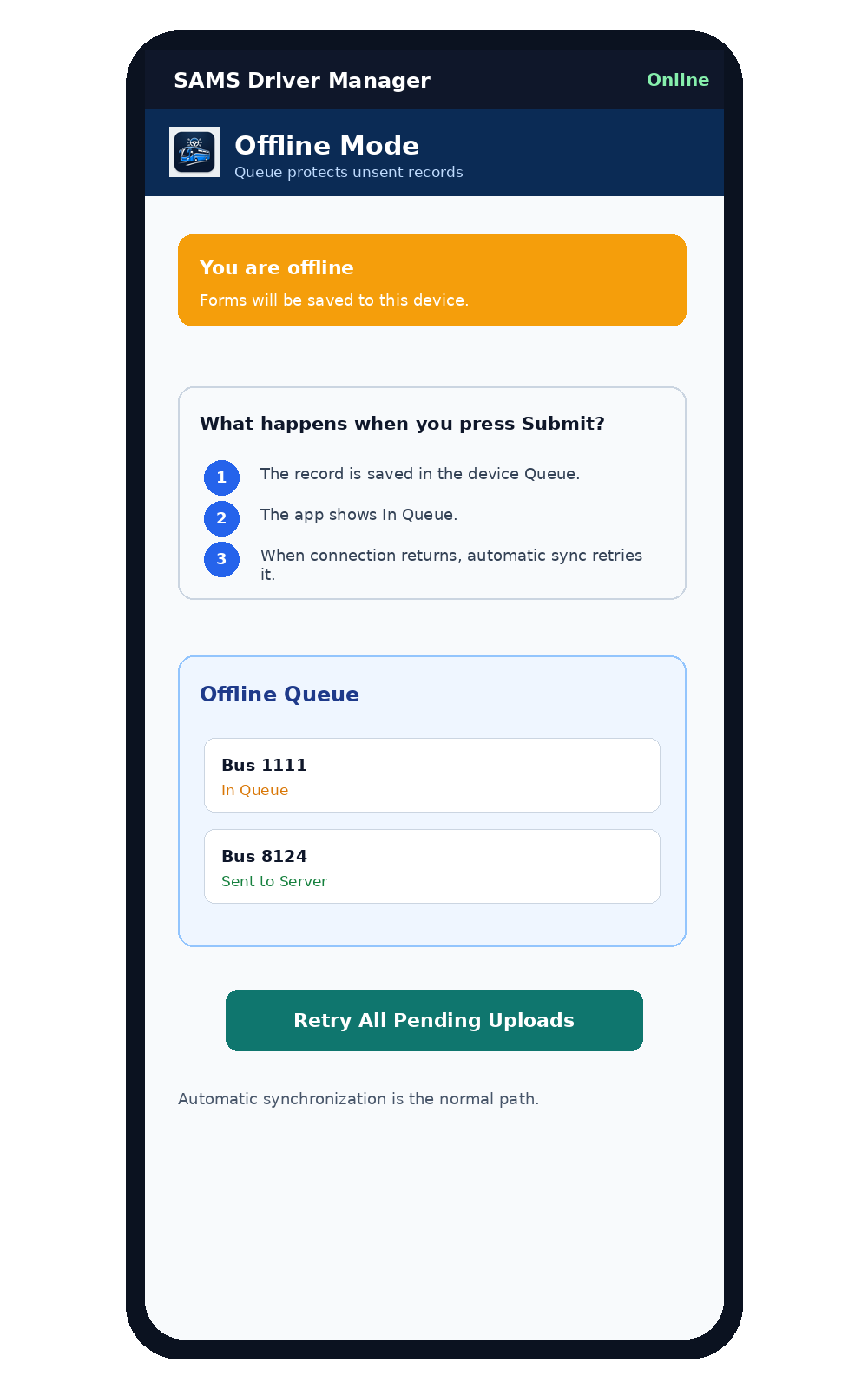
When the server cannot be reached, the record is stored on the device and shown as In Queue. The Queue is preserved across app restarts and sign-out. Automatic synchronization retries pending records when connectivity returns and while the PWA is open. Retry All is available for pending uploads but automatic synchronization is the normal workflow.
9. Session Buses
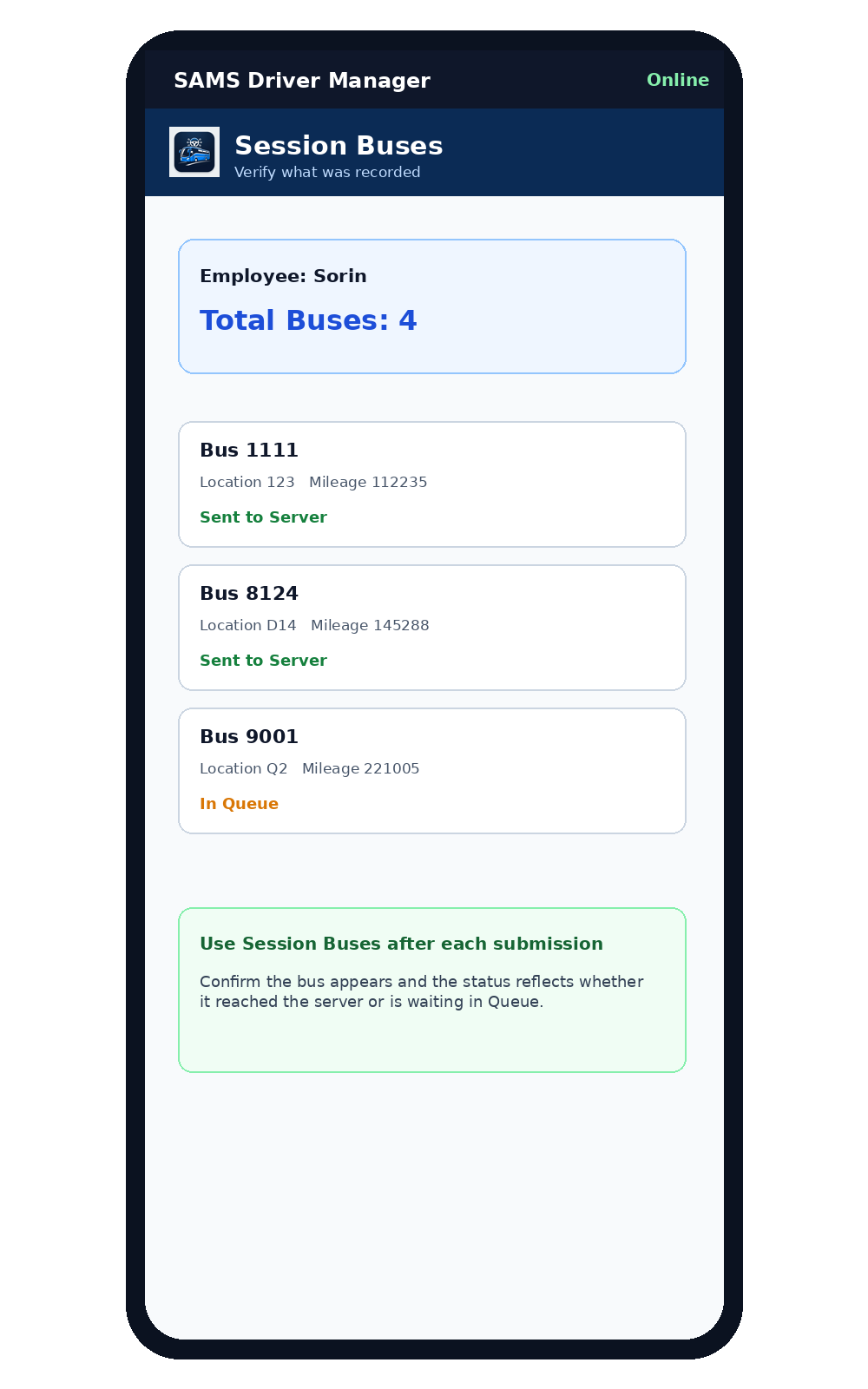
Open Session Buses to review the buses handled during the current employee session. Confirm bus number, parking location, mileage and status. Sent to Server means the server confirmed the record. In Queue means the record is still stored locally and waiting to synchronize.
10. Safety Reminders
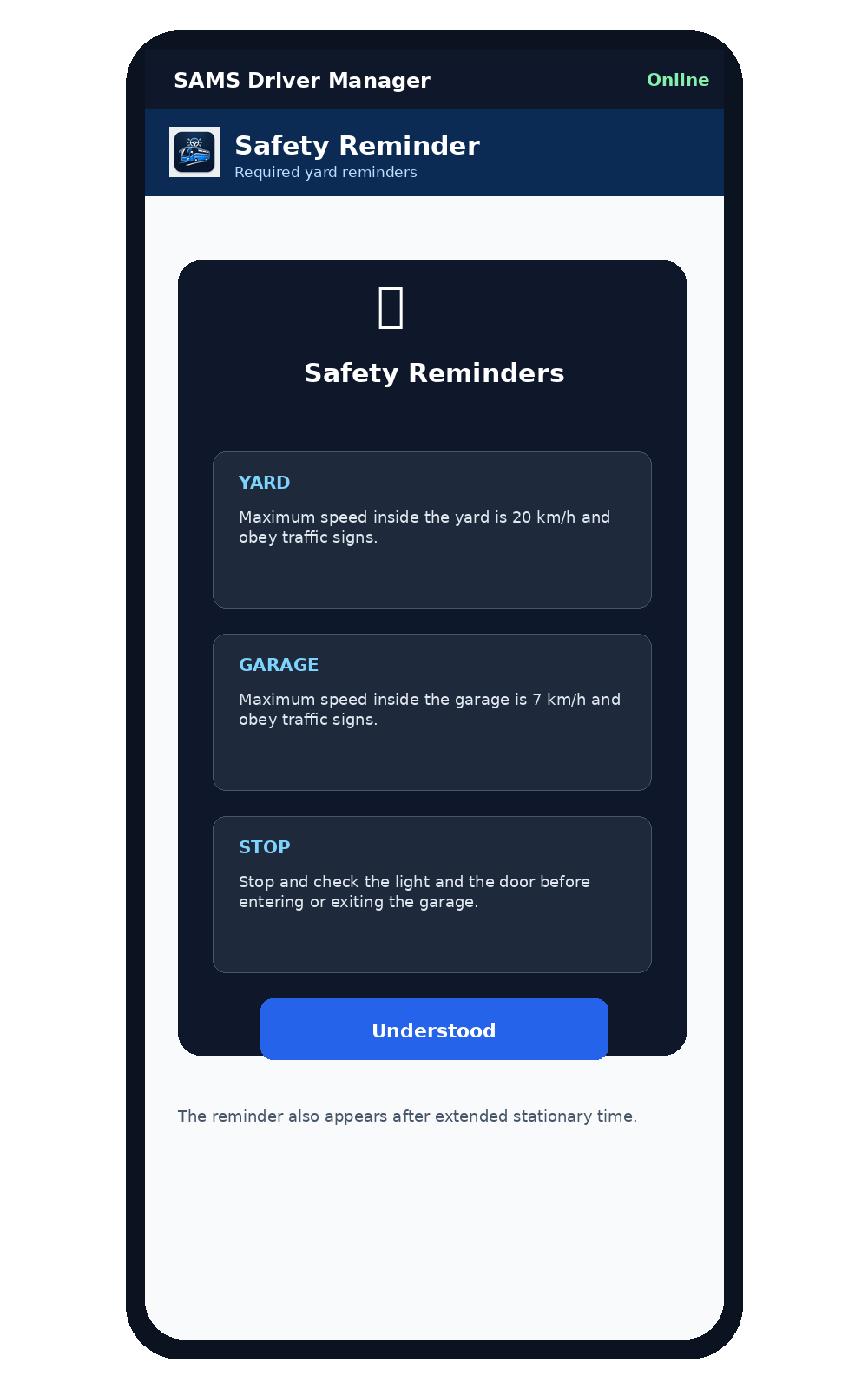
The Safety Reminders window appears when entering Driver Entry and may reappear after extended stationary time. Review the yard speed limit, garage speed limit, and the requirement to stop and check the light and door before entering or exiting the garage. Select Understood after reviewing the reminder.
11. Inactivity and automatic sign-out
After 25 minutes without activity, the app shows a five-minute inactivity warning. Select Stay Signed In to continue the session. At 30 minutes without activity, the employee is automatically signed out. Queue records are preserved. Normal touch, input, selection and navigation activity resets the timer.
12. Settings and User Manual
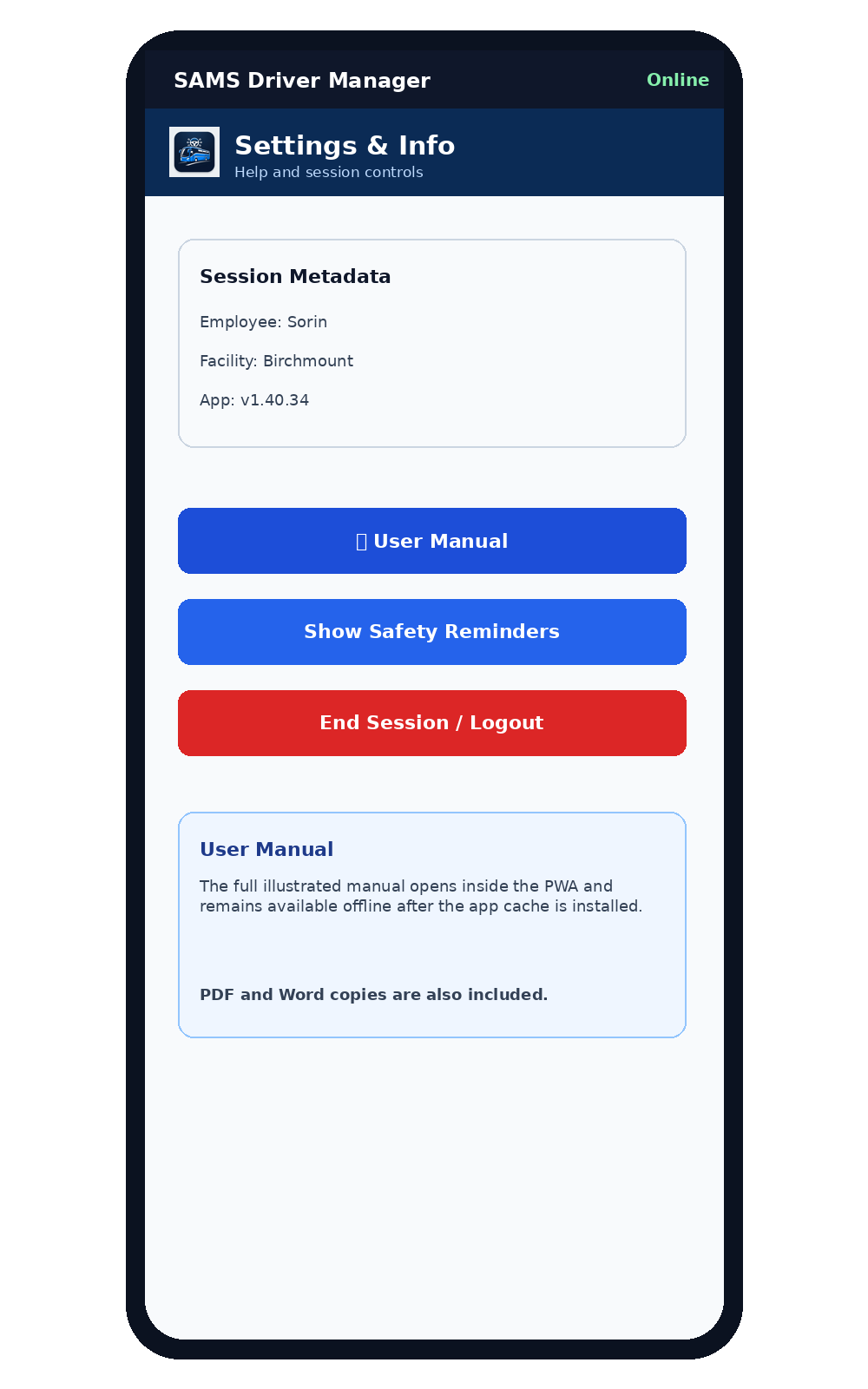
Settings displays session information and provides access to Safety Reminders, the User Manual and End Session / Logout. Use the User Manual button to reopen this guide from inside the app.
13. Troubleshooting
If the camera cannot open, verify browser camera permission and return to the PWA without clearing site data. If a record is offline, check the Queue and allow automatic synchronization after connectivity returns. If the app shows an older version after deployment, use the supplied force-update page. Never clear IndexedDB or site storage as a troubleshooting step unless authorized, because pending Queue records may be lost.
14. End-of-session checklist
Before signing out: confirm all buses handled are visible in Session Buses, review the Queue for pending uploads, verify any required photos and defect notes, and then use End Session / Logout. Sign-out clears the active login and entry fields but keeps pending Queue records.
Quick Reference
Review and select Understood.
Shown only when expiry is within about one month.
Automatic synchronization resumes when connectivity returns.
Clears active fields; Queue remains.